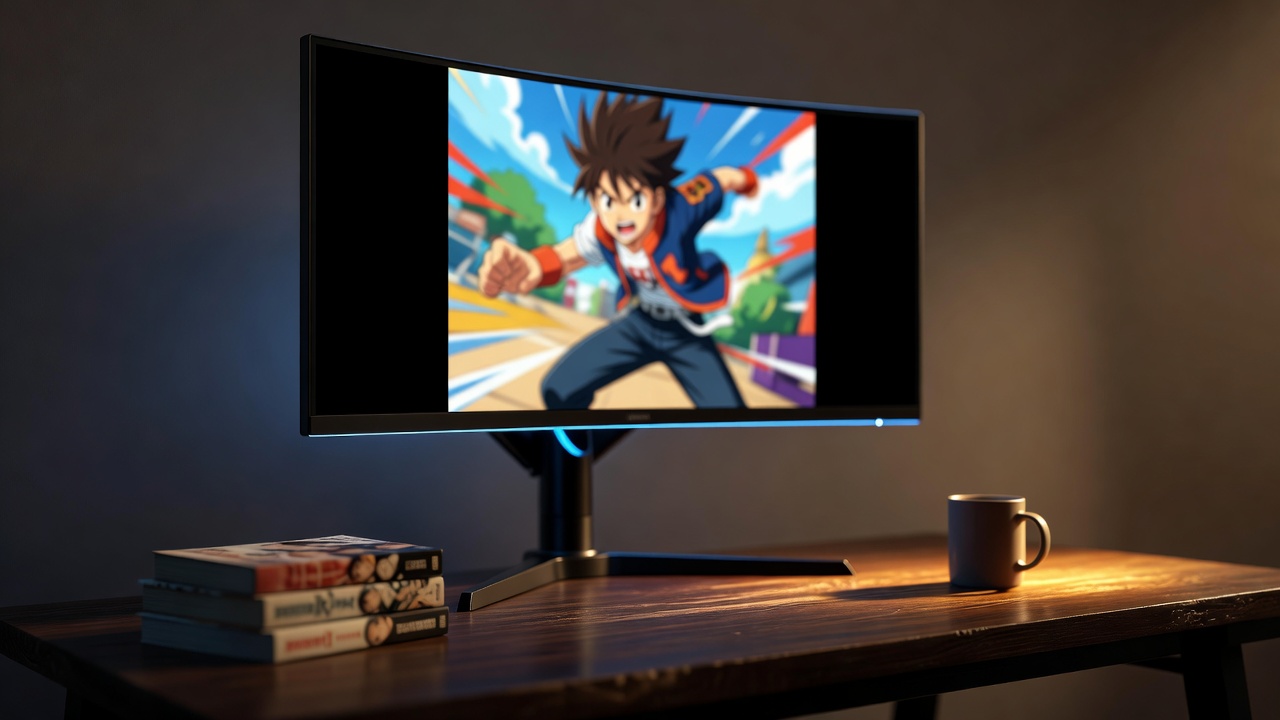
You queue up the latest simulcast on your 34-inch ultrawide, hit fullscreen, and there it is – a strip of anime floating in the middle of your screen with a third of your display sitting dark on either side. Switch to a classic like Cowboy Bebop or Dragon Ball Z and it somehow gets worse – now the picture is a tiny rectangle boxed in on all four sides.
Crunchyroll black bars on ultrawide aren't a bug in the player. They're the collision between how anime is mastered and how your monitor is shaped. Once you understand what's happening, the fix is quick.
Why Crunchyroll Serves Black Bars in the First Place
Almost every modern anime is produced and mastered in 16:9. That's the standard TV and streaming aspect ratio – the same shape as your phone in landscape, your laptop, and most content on YouTube or Netflix.
Your ultrawide monitor is not 16:9. A standard ultrawide is 21:9, and a super-ultrawide is 32:9 – nearly twice as wide as tall. When Crunchyroll's player shows a 16:9 episode on a 21:9 screen, it has two choices: stretch the picture and distort every character's face, or add black bars on the sides to preserve the shape. It picks the bars. Every time.
That's already annoying. Then classic anime makes it worse.
The 4:3 Problem With Classic Anime
Crunchyroll's catalog goes deep. Dragon Ball, Sailor Moon, Ranma ½, Rurouni Kenshin – a huge chunk of the classic library was produced before widescreen TV existed, mastered in 4:3. That's a nearly square shape.
A 4:3 show on a 21:9 monitor is pillarboxed so aggressively that the actual picture takes up maybe 40% of your screen. The rest is a black frame. If you're on a 32:9 super-ultrawide, it's worse – the video becomes a small square in the middle of a very wide void.
Some older shows also have subtle letterboxing baked into the master (a scene shot slightly widescreen inside a 4:3 frame), which the player treats as part of the picture. That's why simple zoom tricks often don't work – you'd just be zooming into more black.
Why Browser Fullscreen Doesn't Save You
You might expect browser fullscreen to fix this. It doesn't. Fullscreen tells the browser to fill your monitor with the page – but the video element inside that page still knows it's 16:9 (or 4:3) and refuses to distort itself. The player faithfully preserves the aspect ratio and pads out the extra space with black.
Crunchyroll also can't magically know your monitor is 21:9. Even if it did, it wouldn't recrop the anime for you – that would cut off tops of heads and edges of action.
The fix has to happen on your end, in the browser, on the video element itself.
How UltraWideo Fixes Crunchyroll Black Bars
UltraWideo is a browser extension that grabs the video element and scales it to fill your screen. It doesn't touch the page layout, doesn't zoom text, doesn't break the player controls. It just makes the video the right shape for your monitor.
For Crunchyroll specifically, three modes cover almost every situation:
- Upscale – enlarges the video until it fills the screen while keeping the correct proportions. You lose a small amount off the top and bottom, but for most anime the important action is in the middle of the frame. This is the best default for standard 16:9 episodes on a 21:9 monitor.
- Stretch – forces the video to match your screen exactly. Faces get slightly wider. Some people hate this, some don't notice. Worth trying once to see which camp you're in.
- Custom – lets you dial in the exact scale and pan. Useful for 4:3 classics where you want to enlarge the picture but not crop out subtitle lines, or for opening sequences where the framing is unusual.
Switch between them with a keyboard shortcut or the floating panel. Pinch on a trackpad to fine-tune the scale. It works inline in the player and in fullscreen.
Make It Stick With Per-Host Settings
Here's where the Pro tier earns its keep for anime fans. Per-Host Settings lets UltraWideo remember your preferred mode for Crunchyroll specifically – so every time you open the site, your setting is already applied. No more toggling modes when you switch tabs from YouTube to Crunchyroll.
Even better, Per-Path Settings lets you go finer. Set Upscale as your default for modern 16:9 shows, but a custom scale for the URL patterns where you know a 4:3 classic lives. Your setup adapts to the content automatically.
If you jump between a work laptop and a home ultrawide, Cloud Storage & Sync keeps those preferences consistent across machines. Details on all of that live on the Pro page.
What About Retro CRT Setups?
If you're the kind of viewer who watches classic 4:3 anime on an actual 4:3 CRT for the authentic look – UltraWideo works there too. The same modes that scale up 16:9 content on a 21:9 monitor will scale up 16:9 modern anime to fill a 4:3 CRT (with a little crop on the sides), or leave 4:3 classics native. Same extension, opposite problem, same fix. It's the same principle that makes it useful across every kind of display shape.
FAQ
Does UltraWideo work with Crunchyroll's DRM?
Yes. UltraWideo scales the video element in the browser without touching the underlying stream. Playback, subtitles, and DRM all keep working normally.
Will I lose subtitles if I zoom in on 16:9 anime?
Sometimes, if the subtitles are burned near the very bottom edge. Use Custom mode to pull the scale back slightly or pan the picture up a few pixels – the subs come right back.
Does this work in Crunchyroll's fullscreen mode?
Yes. UltraWideo operates in both inline and fullscreen. Your mode and scale stay applied when you toggle fullscreen.
What about classic 4:3 series like Dragon Ball Z?
Upscale will enlarge them to fill the vertical space but still leave some side bars – 4:3 will never truly fill 21:9 without heavy cropping. Stretch will fill the whole screen at the cost of distortion. Custom lets you find your own middle ground.
Does the free tier work on Crunchyroll?
Yes. All four modes, scale, and pan work on Crunchyroll on the free tier. Per-host memory is the main thing you'd upgrade for.
If you're tired of watching anime in a strip in the middle of your beautiful monitor, give UltraWideo a try. Free tier covers the basics, and once it's set up you'll forget those black bars ever existed.