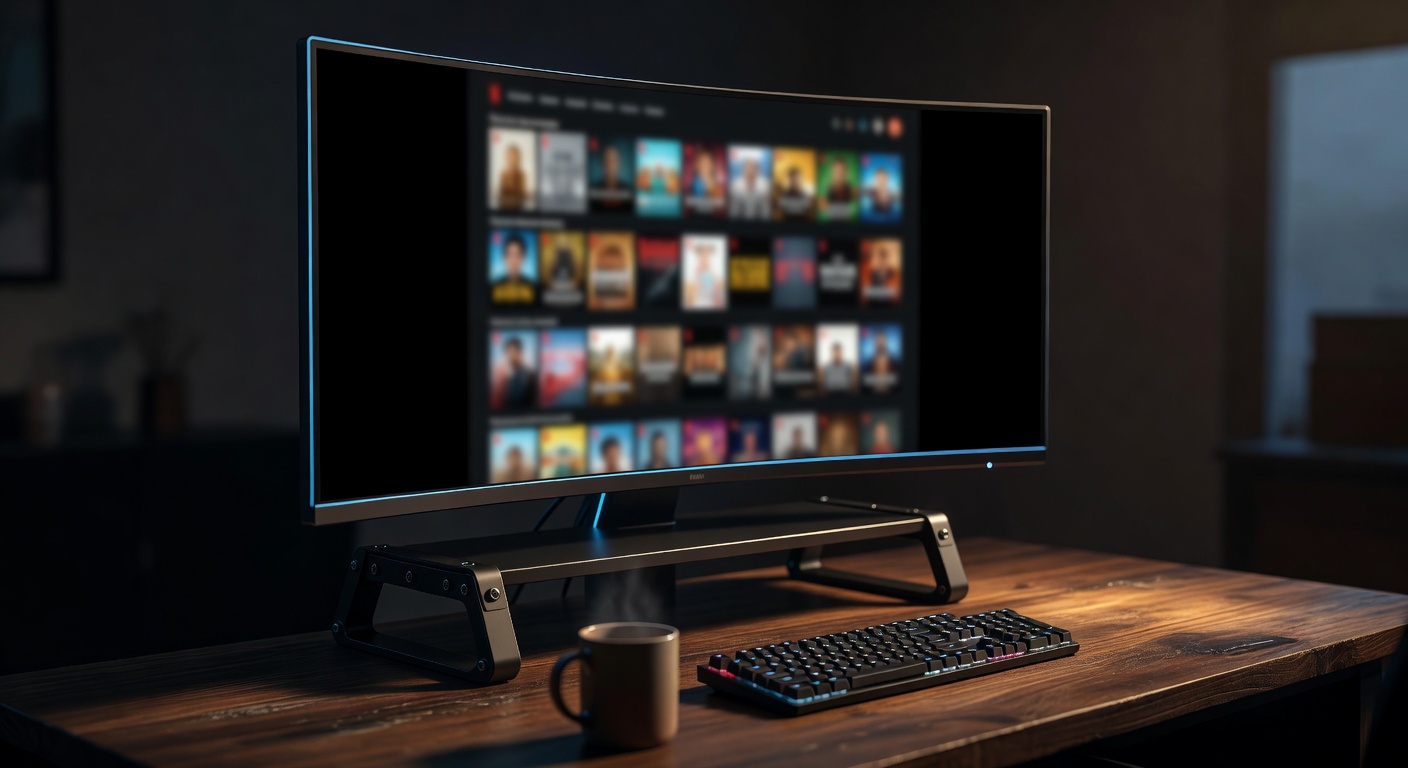
You paid for an ultrawide monitor. You opened Netflix. And there it is – Netflix black bars on ultrawide screens, eating up a third of your display on either side of the video.
It's the most-asked question from new 21:9 and 32:9 owners, and the answer is more interesting than "Netflix is broken." There are real technical reasons behind those bars, and there's a clean way around them.
Why Netflix Shows Black Bars on Ultrawide
Netflix didn't forget about ultrawide users. The bars are the result of three things colliding at once.
The catalog is a mix of aspect ratios. Most TV shows are mastered in 16:9 (1.78:1). Most films are in either 1.85:1 or 2.39:1 cinematic widescreen. Netflix originals sometimes ship in 2:1. Your 21:9 monitor is roughly 2.37:1, and your 32:9 is about 3.56:1. Almost nothing in the catalog matches natively.
The player pads everything to fit the window. Netflix's web player takes whatever aspect the source is in and centers it inside the browser viewport, letterboxing or pillarboxing the rest. On a 16:9 laptop you only see black bars on cinematic films. On an ultrawide, you see them on almost everything.
DRM locks the video element down. This is the part most people miss. Netflix streams through Widevine DRM, which means the video is rendered in a protected path that ordinary page scripts can't touch directly. You can't just "CSS transform" the video to fill the screen the way you can on YouTube. Netflix also aggressively blanks the frame if it detects screen capture or suspicious manipulation.
That last point is why browser zoom, developer tools hacks, and most DIY fixes fail on Netflix specifically – they work for a second, then the player either snaps back or goes black.
What Doesn't Work
Before getting to the fix, it's worth killing a few bad ideas.
- Browser zoom (Ctrl +). Scales the whole page. You get a bigger video, yes, but also giant menus, broken layout, and scrollbars. And the black bars are still there – just bigger.
- Fullscreen mode alone. Fullscreen only makes the player fill the display. The black bars stay, because the video's aspect ratio hasn't changed.
- Monitor-level stretch modes. Some ultrawides have a hardware "aspect fill" mode, but it applies to your whole desktop – every app looks wrong, and it can't distinguish between 16:9 content and 2.39:1 content.
- Changing Netflix's streaming resolution. Doesn't touch aspect ratio. 4K on Netflix is still 16:9 (or whatever the title is mastered in).
None of these understand what you actually want: the video itself scaled to fill your screen, with everything else left alone.
How UltraWideo Removes Netflix Black Bars
UltraWideo operates on the video element outside the DRM-protected render path. It doesn't touch the video stream – it adjusts how the video is displayed. Netflix's protection layer stays happy, and your ultrawide actually gets used.
You get four modes:
- Normal – leave the video alone (the default state).
- Upscale – enlarge the video proportionally until it fills the screen, cropping the smallest amount possible. Best for 16:9 content on a 21:9 monitor.
- Stretch – force the video to fill the full width, slightly distorting the image. Some people prefer this on dialogue-heavy shows; most don't.
- Custom – dial in exact scale and pan values. Useful for 2.39:1 films on 32:9 where you want the image to sit at a specific height.
Scroll-wheel or trackpad pinch over the video adjusts scale live. Keyboard shortcuts toggle modes without ever opening a menu. It works in both fullscreen and inline – so you can watch Netflix in a window on a dual-monitor setup and still get a full-width image.
If you're new to why this extension exists in the first place, the post on why ultrawide monitors need a browser extension covers the general case.
Getting Netflix-Specific With Pro
Here's where it gets genuinely useful for Netflix watchers.
Netflix's catalog is mixed – a 2.39:1 film needs a different scale than a 16:9 sitcom. Manually adjusting every time you change titles gets old fast.
Per-Host Settings (Pro) let you pin a mode and scale to netflix.com specifically. Open Netflix, it applies. Open YouTube, a different setting applies. No thinking required.
Per-Path Settings (Pro) go one level deeper – you can have different defaults for /watch/ pages versus browse pages, so the browse grid doesn't get stretched while individual titles do.
Cloud Storage & Sync keeps those settings consistent across your Chrome on desktop, Firefox on a laptop, and whatever other machine you stream from.
If you watch Netflix often enough to notice the black bars every single time, Pro pays for itself pretty quickly.
What About Other Streaming Sites?
Netflix is the strictest, but the same principles apply elsewhere. Prime Video and Disney+ have similar DRM constraints and mixed catalogs. YouTube is looser and easier to manipulate, but the ergonomic benefit of one-click scaling is the same. UltraWideo handles all of them with the same interface – you learn it once.
FAQ
Does removing black bars on Netflix violate the terms of service? UltraWideo doesn't capture, record, or redistribute Netflix content. It changes how the video is displayed on your screen – the same category as using fullscreen or adjusting monitor brightness.
Will I lose picture quality? You're scaling a high-resolution video to fill more of your screen. On a 1440p ultrawide watching 1080p or 4K content, the difference is barely visible. Pro's Enhance Quality feature adds sharpening if you want to push it further.
Does it work in Netflix fullscreen? Yes. Fullscreen and inline both work, and you can switch between them without losing your scale settings.
What about cinematic 2.39:1 films on a 21:9 monitor? 21:9 is close to 2.39:1 already. Use Upscale mode – the film will fill your screen almost perfectly with minimal cropping. This is the single best use case for ultrawide ownership.
Will Netflix ever add native ultrawide support? Probably not. The source content isn't in ultrawide aspect ratios to begin with, and Netflix optimizes for the dominant 16:9 TV and laptop audience. A client-side fix is the realistic answer.
If you've been squinting at letterboxed Netflix on an expensive ultrawide, UltraWideo is the straightforward fix. The free tier handles the basics – give it a try and see your monitor do what you bought it for.