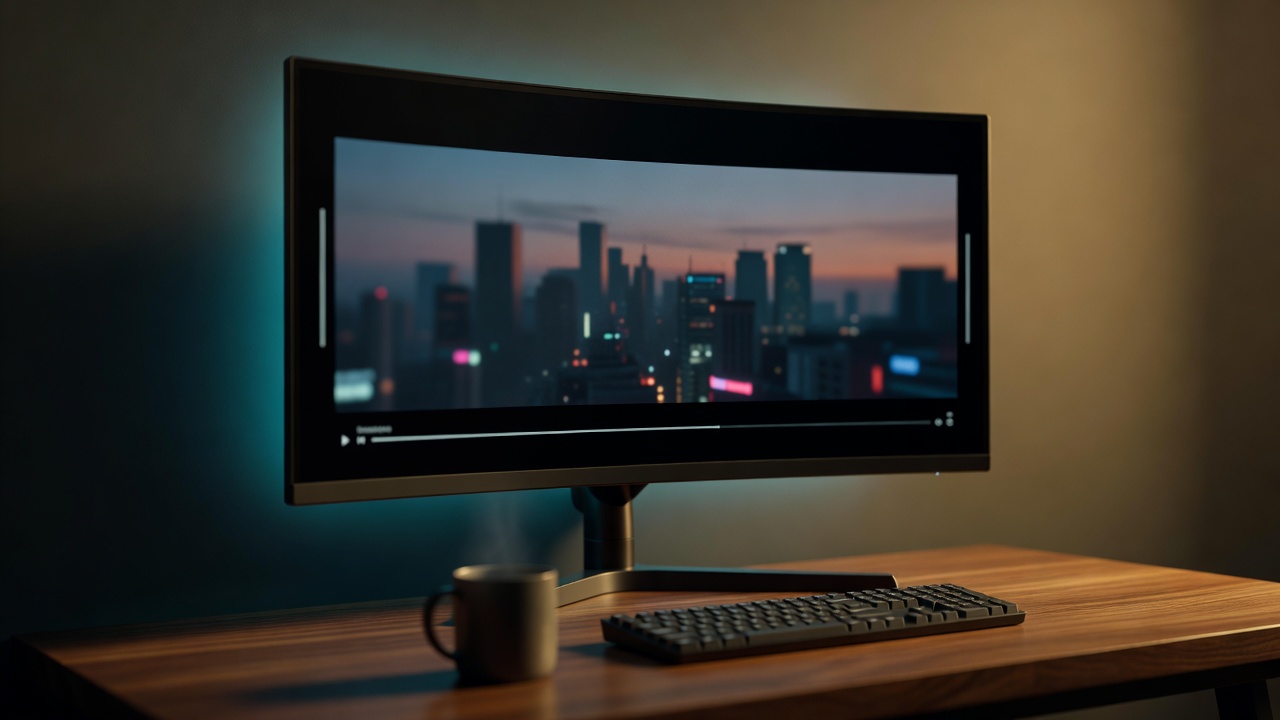
You settle in for a Prime Video binge on your 34-inch ultrawide, hit play on a Jack Ryan episode, and get a stripe of video floating in a sea of black. You switch to an old movie and somehow the black bars get even worse – now they're on all four sides.
Welcome to the Prime Video black bars ultrawide problem. It's not your monitor. It's not a setting you missed. It's Prime Video's catalog itself, which is uniquely chaotic in a way that no amount of fullscreen toggling will fix.
Prime Video's Catalog Is Three Catalogs in a Trench Coat
Most streaming services have a dominant aspect ratio. Netflix leans into 2:1 for its originals. Disney+ is mostly 16:9 with cinematic exceptions. Prime Video has no such consistency.
On any given evening you might watch:
- A 2.39:1 cinematic release – think theatrical movies, big-budget originals like The Boys or Rings of Power. These were shot wide and stay wide.
- A 16:9 Amazon original or TV show – most episodic content, reality shows, documentaries.
- A 4:3 classic – older licensed sitcoms, vintage films, restored archive content that predates widescreen entirely.
- An occasional 1.85:1 or 2:1 release that splits the difference.
Each of these renders inside Prime Video's 16:9 player frame. The player itself is sized for 16:9. So everything narrower gets pillarboxed, everything wider gets letterboxed, and on a 21:9 or 32:9 monitor the whole 16:9 player then gets pillarboxed too. You're stacking black bars on top of black bars.
Why Fullscreen Doesn't Save You
Click the fullscreen button and the player expands – but only to the dimensions of your monitor. The video inside the player still respects its source aspect ratio. So a 2.39:1 movie on a 21:9 (which is roughly 2.37:1) screen should fill almost perfectly. In practice, Prime Video keeps a 16:9 player frame and centers the video inside it, leaving you with a postage-stamp version of a movie that could have filled your screen edge to edge.
The browser can't fix this. The streaming service won't fix this. The fullscreen API treats the player element as one rectangle and just maximizes it – it has no concept of the video's true aspect ratio inside.
This is the same structural issue we covered for Netflix and Disney+, but Prime Video amplifies it because the catalog itself is so inconsistent. You can't pick one setting and forget about it.
What You Actually Want Per Content Type
Here's the thing – the "right fix" depends entirely on what you're watching.
- 2.39:1 movies on 21:9: scale up just enough to crop out the player's 16:9 padding. You get a true edge-to-edge cinematic image with no distortion.
- 2.39:1 movies on 32:9: light crop plus a small stretch, or accept tiny pillars – your call.
- 16:9 shows on 21:9: zoom and accept a small top/bottom crop, or stretch slightly. Most faces look fine; you lose a sliver of headroom.
- 16:9 shows on 32:9: hard choice. Aggressive stretch warps faces; modest zoom still leaves bars. Many people settle on a custom scale that splits the difference.
- 4:3 classics: leave them alone, or accept the pillarboxing as the price of vintage content. Stretching a 4:3 sitcom to 21:9 makes everyone look like they're posing for a fishbowl.
The problem isn't choosing a fix. It's that you'd have to choose a different fix every time you start a new title.
How UltraWideo Solves the Per-Title Problem
UltraWideo gives you four scaling modes – Normal, Upscale, Stretch, and Custom – plus manual scale and pan. You bring up the panel, pick the mode that suits the content, and the video fills your screen the way you want.
But the real fix for Prime Video specifically is the Pro tier's Per-Path Settings. Per-Host remembers a single setting for primevideo.com. Per-Path remembers settings per URL pattern – so the Jack Ryan title page can have one scale, a 2.39:1 movie page another, and a 4:3 classic gets left untouched.
Combine that with Mode Manager (build your own preset modes – "21:9 crop fit", "32:9 cinematic stretch", whatever you actually use) and the per-title chaos becomes a one-time setup. You configure once, then Prime Video just plays correctly forever.
The free tier handles the basics fine – open the panel, pick Upscale, get past the black bars. If you watch Prime Video heavily across very different titles, the Pro per-path memory pays for itself in saved fiddling.
Keyboard Shortcuts Make This Painless
Even without Pro, you don't have to open a panel every time. UltraWideo's keyboard shortcuts and scroll-wheel gestures let you scale on the fly. Land on a movie that's still letterboxed? A couple of keystrokes and it fills the screen. Switch to a 4:3 classic? One shortcut back to Normal.
This is the workflow most ultrawide owners settle into: free tier, shortcuts memorized, occasional manual tweaks. The friction drops to near zero once it becomes muscle memory.
FAQ
Does Prime Video block extensions like Netflix sometimes does with DRM?
Prime Video uses DRM-protected streams, but UltraWideo scales the video element itself rather than touching the stream. Playback continues normally. No DRM error, no broken player.
Why are the black bars worse on some Prime titles than others?
Because Prime Video's catalog mixes 2.39:1 cinematic, 16:9 episodic, and 4:3 archive content. Each renders inside the same 16:9 player frame, then that player frame gets pillarboxed on your ultrawide. The narrower the source, the more black space.
Will scaling distort the picture?
Upscale mode preserves aspect ratio – it zooms and crops, no warping. Stretch mode does warp the image and is best reserved for 16:9 content on 32:9 where you can tolerate some distortion. Custom mode lets you tune the balance yourself.
Does this work on Prime Video on Firefox for Android?
Yes. UltraWideo runs on Firefox for Android, which means mobile Prime Video viewing in landscape gets the same treatment. Chrome on Android doesn't support extensions, so it's Firefox-only on mobile.
Can I keep different settings for different shows on Prime?
With Pro's Per-Path Settings, yes. Each title or section of the site can remember its own scale and mode, so 2.39:1 movies and 4:3 classics don't fight over a single setting.
If you've been squinting at floating video on your ultrawide every Prime Video session, give UltraWideo a try. The free tier fixes the immediate problem. If your Prime habit involves a lot of mode-switching between movies, shows, and classics, the Pro per-path memory is built for exactly this.