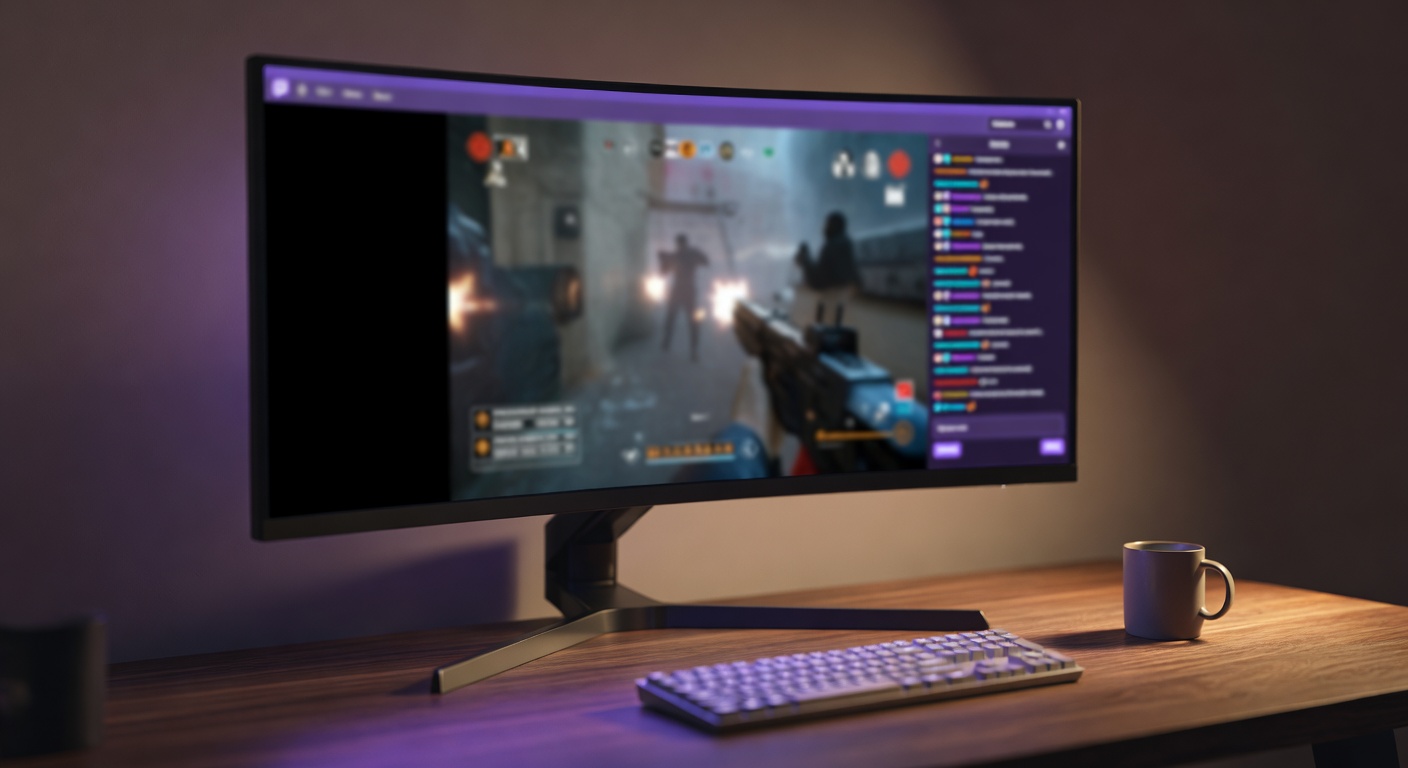
You opened Twitch on your 34-inch ultrawide, clicked theater mode, and there they are – fat black bars on either side of the stream. Your favorite streamer is playing in glorious detail in a tiny island of pixels surrounded by void.
Twitch black bars on ultrawide monitors are not a bug, not a streamer's mistake, and not something Twitch is going to fix. They're baked into how streaming works. The good news: a browser extension can collapse them in seconds without hiding the chat.
Why Twitch Streams Are 16:9
Twitch's entire pipeline assumes 16:9. Streamers configure OBS or Streamlabs at 1920x1080 or 2560x1440 – both 16:9. The Twitch ingest server expects 16:9. The player on the website is built around 16:9. Even mobile apps assume 16:9 landscape.
This isn't laziness. It's the same broadcast standard YouTube, Netflix, and basically every video platform on the planet uses. Cameras shoot 16:9. Game capture is 16:9. The web video stack was built around 16:9.
Your ultrawide monitor is 21:9. Your super-ultrawide is 32:9. Neither matches what Twitch is sending. So the browser does the only safe thing it knows – it preserves the aspect ratio of the source and fills the unused space with black.
The Theater Mode Complication
Here's where Twitch gets its own special twist. On YouTube or Netflix, you mostly care about the video itself. On Twitch, the chat panel matters too – sometimes more than the stream.
Twitch gives you three player layouts:
- Default view – small player, chat on the right, everything else (panels, video description, recommended streams) crammed below.
- Theater mode – player expands to fill the browser viewport, chat stays pinned to the right.
- Fullscreen – player takes the whole screen, chat disappears unless you toggle it back in.
For most ultrawide users, theater mode is the sweet spot – you keep chat visible and get a bigger player. But theater mode is where the letterboxing problem is worst. The 16:9 stream sits inside a 21:9 viewport minus the chat column, leaving black bars on the left and a thin strip on the right.
Going full fullscreen helps the video but kills chat, which defeats half the reason you're on Twitch in the first place.
Why Browser Zoom and Site Settings Don't Solve It
The obvious fixes don't work. Browser zoom (Ctrl + Plus) scales the entire page – chat gets bigger, the UI gets bigger, but the video element still respects its 16:9 aspect ratio inside its container. You end up with a bigger black-bar sandwich.
Twitch's own settings won't help either. There's no "fill screen" toggle hidden in the gear menu. The stretch-to-fit option you remember from VLC doesn't exist on the web player. Streamers can't broadcast in 21:9 even if they wanted to – the platform won't accept it.
What you actually need is something that targets the video element specifically, leaves the chat column alone, and scales the picture to fill the space the player is sitting in.
How UltraWideo Fixes Twitch Black Bars
UltraWideo is a Chrome and Firefox extension built for exactly this situation. It watches for video elements on any site and gives you control over how they scale.
On Twitch in theater mode, the workflow looks like this:
- Open the stream you want to watch.
- Hit theater mode so chat stays visible.
- Open the UltraWideo panel and pick Stretch or Upscale mode.
- The video fills the player area horizontally. Chat stays untouched on the right.
No more black bars on the left. No more sacrificing chat for picture. The stream slightly crops the top and bottom in stretch mode, or scales uniformly in upscale mode – your call depending on whether you'd rather see everything or fill everything.
If you want to tune it once and forget it, the Pro tier has Per-Host Settings that remember your Twitch preference forever. Open twitch.tv tomorrow and your stretch mode is already applied. No clicking, no fiddling.
This is the same pattern we wrote about for Netflix on ultrawide and cloud gaming services – different platforms, same root cause, same kind of fix.
What About Mobile and Smaller Screens?
Twitch on Firefox for Android has the same problem in landscape – streams sit in a 16:9 box that may not match your phone's aspect ratio. UltraWideo runs on Firefox for Android too, so the same controls work on the phone you watch streams from in bed.
On a standard 16:9 laptop, you usually won't see Twitch black bars in fullscreen, but theater mode still leaves dead pixels because of the chat column reserving width. The fix is identical.
FAQ
Does UltraWideo break Twitch chat or stream quality?
No. It only modifies the video element's scale and position. Chat, bits, emotes, the channel page – all untouched. Stream quality is whatever Twitch is sending you; UltraWideo just makes the picture fill more pixels.
Will streamers know I'm using it?
No. UltraWideo runs locally in your browser. It doesn't talk to Twitch's servers or interact with the stream metadata.
What's the difference between Stretch and Upscale modes for Twitch?
Stretch fills the whole player area by mildly distorting the aspect ratio – nobody looks like a cartoon, but a 16:9 image is forced into 21:9. Upscale enlarges the video uniformly and crops the top and bottom slightly to fit your screen width. Try both and see which one your eyes prefer.
Does it work with Twitch VODs and clips too?
Yes. Anything Twitch serves as a video element – live streams, VODs, clips, highlight reels – gets the same treatment.
Do I need Pro to fix Twitch black bars?
No. The free tier handles the scaling perfectly. Pro is worth it if you want your Twitch preference to be remembered automatically and applied separately from your YouTube or Netflix settings via Per-Host Settings.
If you spend serious time on Twitch and your ultrawide is just collecting dust on the sides, give UltraWideo a try. The free tier covers the actual fix – Pro is there if you want to set it once and never think about it again.